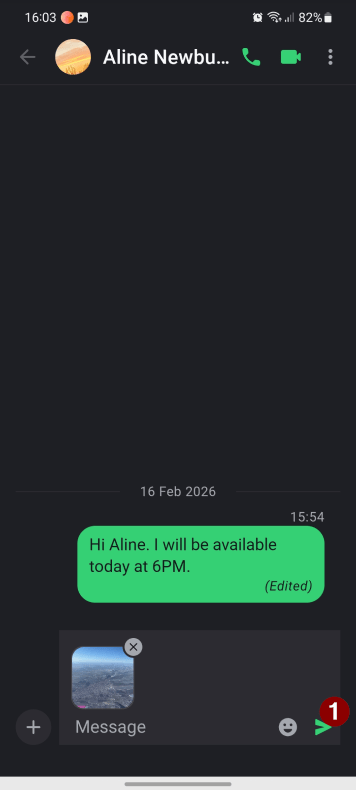
You can send voice messages, images, videos, and files to other Call.com users.
1. To send a voice message, tap the “Record” button.
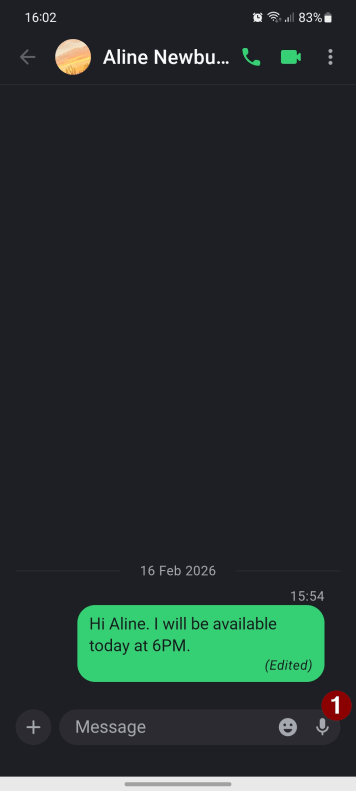
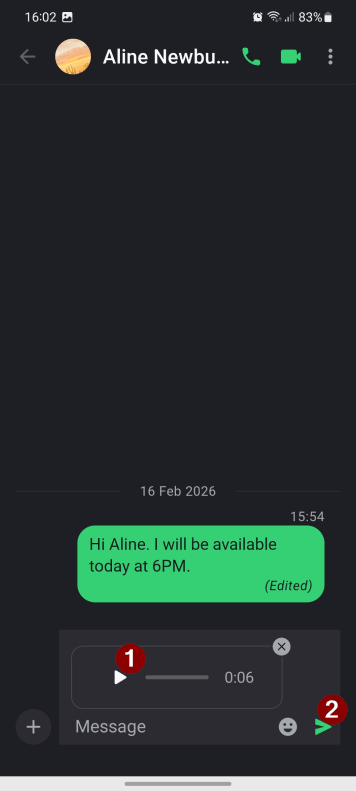
2. Start recording the message and tap the “Stop” button when you are ready.
3. You can first listen to your message and then tap the “Send” button.
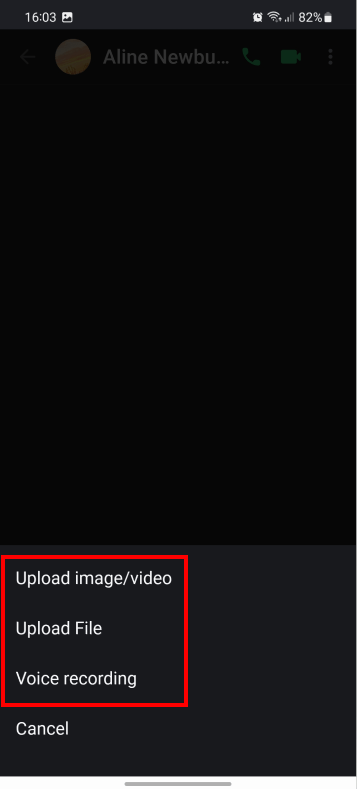
4. To send an attachment, tap the “Add” button ( with “+” imaged).
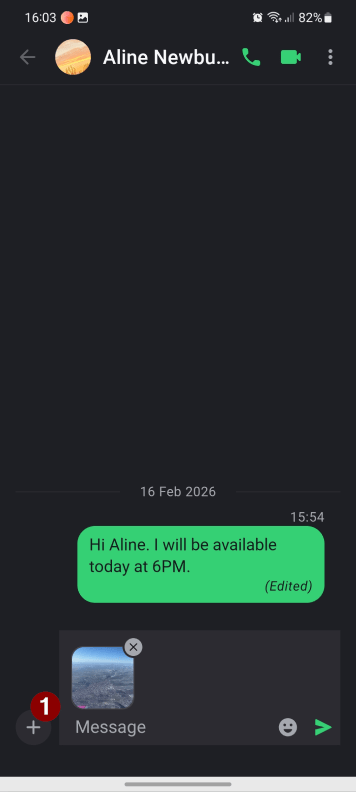
5. Select the “Upload image/video” option to send images or videos, or the “Upload File” to send a document.
6. Select an item from your mobile device storage.
7. Tap the “Send” button