
You will be offered to allow microphone and camera access when you first start using the app. However, if you didn’t enable notifications you can do that from your Account Settings
On iOS (Apple) devices:
- Open your device ‘Settings’
- Scroll down to Call.com
- Click ‘Notifications’
- Toggle on ‘Allow Notifications’
On Android devices notifications should be enabled by default. Each Android handset is different but this may help. If notifications are not enabled:
- Open your device ‘Settings’
- Scroll down to ‘Sound notifications’
- Click‘App notifications’
- Scroll down to call.com
- Ensure ‘Block’ is toggled to off
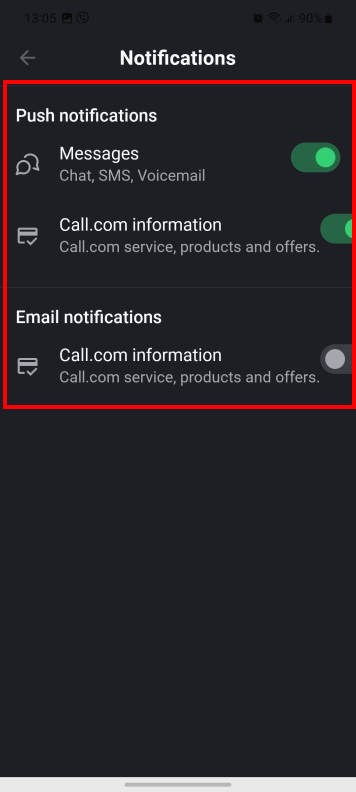
In the Call.com app, under the Notification settings, you can enable or disable the push and email notifications.
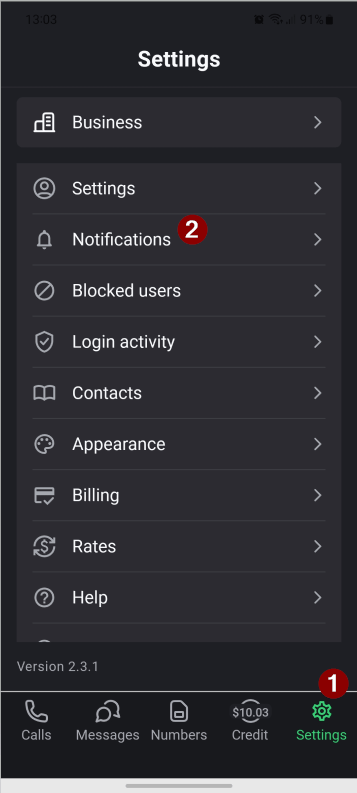
1. Tap the “Settings” button on the bottom home screen. Select the “Notifications” option.
2. Here you can enable/disable message push notifications by toggling the switch. Enable/disable Call.com information push notifications by toggling the switch. Enable/disable email notifications by toggling the switch.
List of the most related articles:
Why do I need to turn on notifications?